LAST CHECKED:
November 25, 2026

Emil Rindell

Jonas Bryntesson

Henrik Andersson
PUBLISHED:
November 19, 2026
Emil Rindell
Jonas Bryntesson
Henrik Andersson
November 19, 2026
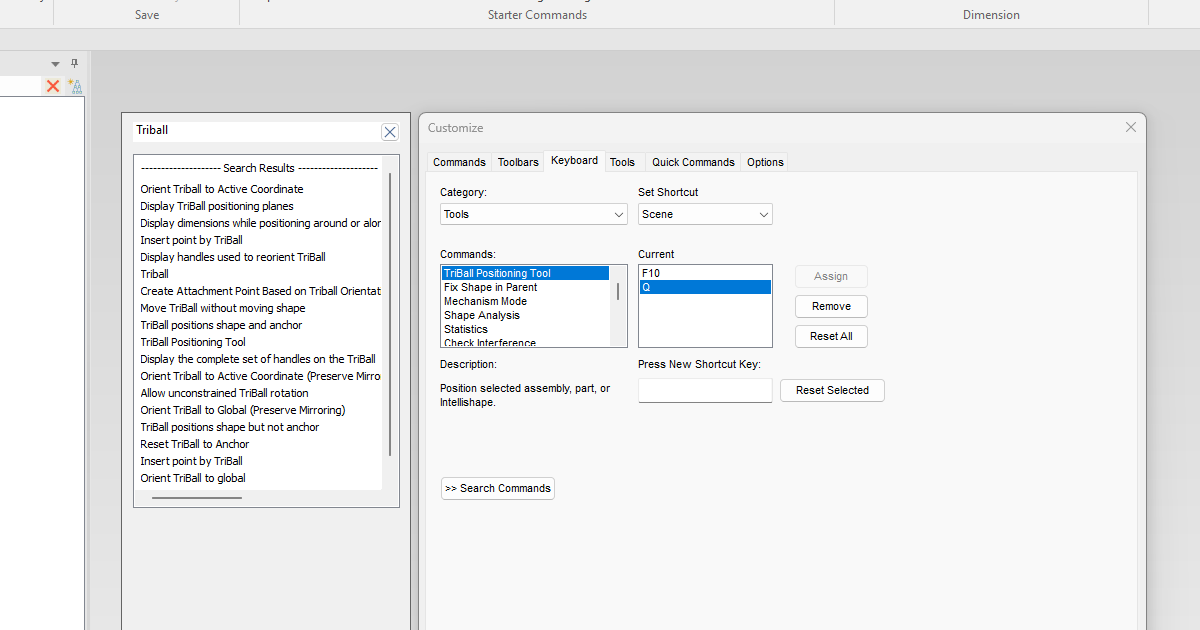
To access various commands more easily and quickly, you can assign keyboard keys to different commands in IRONCAD. Some keys are already assigned to functions in IRONCAD right after installation, such as both [F10] and [Q] for TriBall. Here is a list of preset keyboard shortcuts in IRONCAD
There are several ways to access the Customize settings window. Keep in mind that a keyboard shortcut can be assigned to a command in both the 3D scene and the 2D drawing. Therefore, it is important to make sure you are in the correct environment before opening the Customize window.
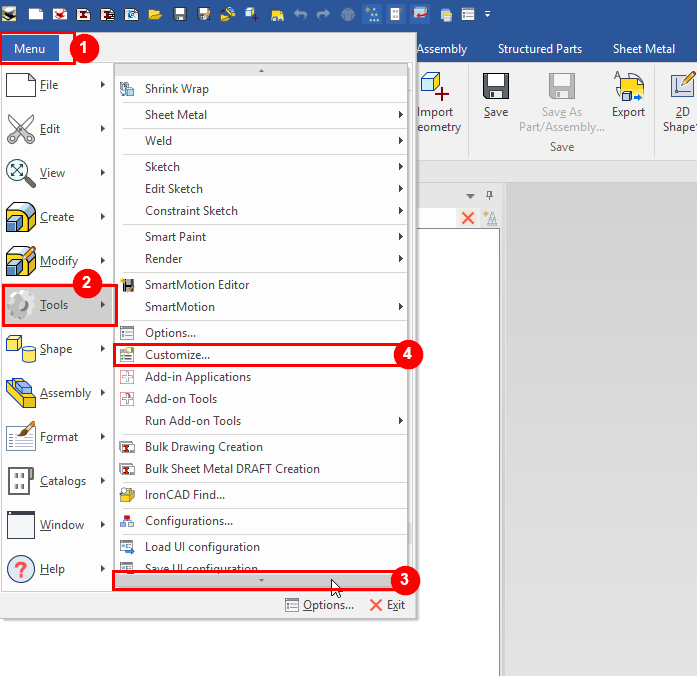
It's easy to access via the menu:
1. Click Menu.
2. Click Tools.
3. Hover the cursor over the arrow at the bottom of the menu so that it scrolls down.
4. Click Customize.
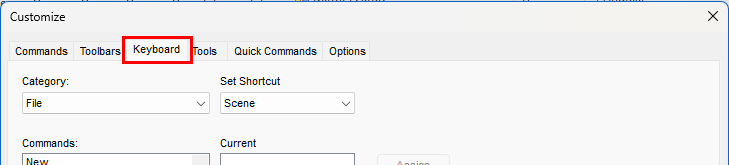
Then click the Keyboard tab.
If you know which category the command belongs to, select it under "Category." Otherwise, you can search in the "Search Commands" field. In our example, the command might not be where you’d first expect it to be. The option to turn TriBall on and off isn’t found under the "TriBall" category, but under " Tools." Therefore, select “Tools” and check “TriBall Positioning Tool.” The reason it’s found under “Tools,” however, is simple: TriBall is a tool that you turn on and off, while the functions you can choose from when it’s active are listed in the corresponding list for TriBall itself.
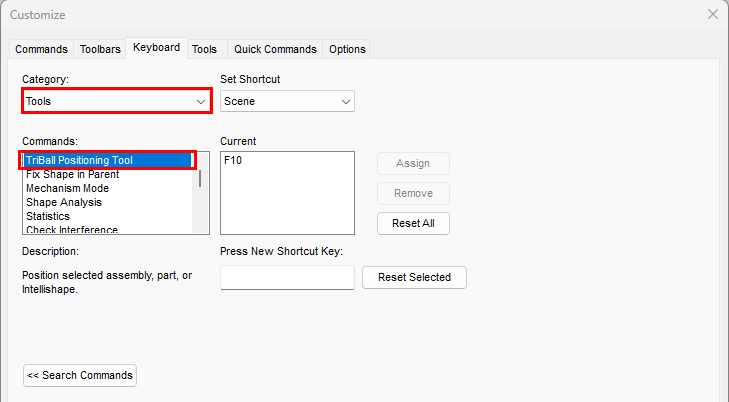
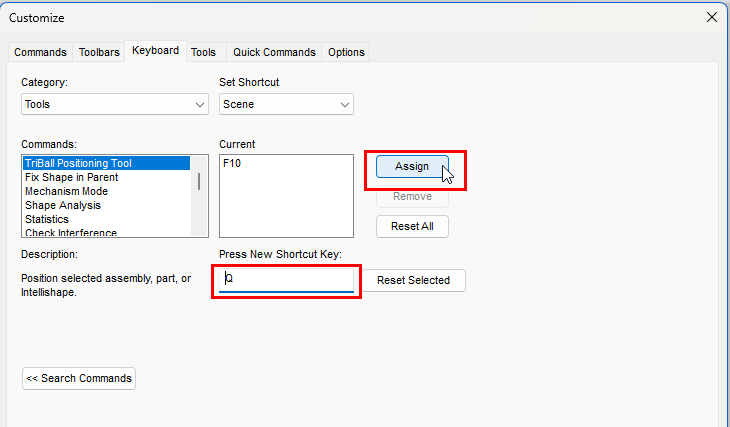
1. Click in the " Press New Shortcut Key" field.
2. Press the key combination you want to use.
3. Click Assign.
If the combination is available, it will now appear in the list under " Current." You have now set your new keyboard shortcut.
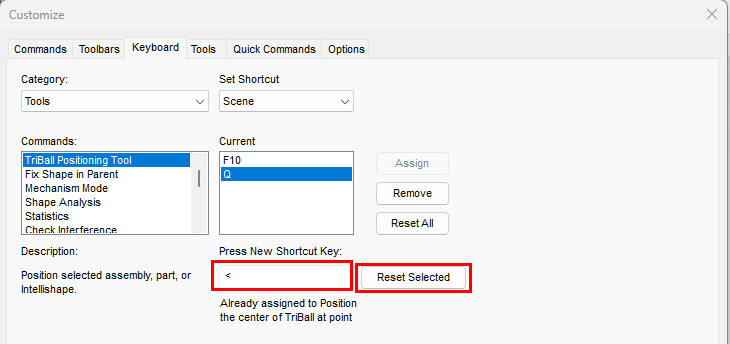
If the combination has already been assigned to another function, that function is displayed under " Already assigned to."
Click the "Reset Selected " button to release the combination, and then assign it to the new function in the same way as described above. NOTE: This applies to v2027 and later. For earlier versions, see below.
If you'd rather remove a keyboard shortcut for the selected command, select it under the " Current " list and click the " Remove" button.
If the combination has already been assigned to another function, that function is displayed under " Already assigned to."
Click the Search Commands button. A new search bar will open to the left of the Customize window. There, search for the command that uses the keyboard shortcut you'd like to reassign to another command.
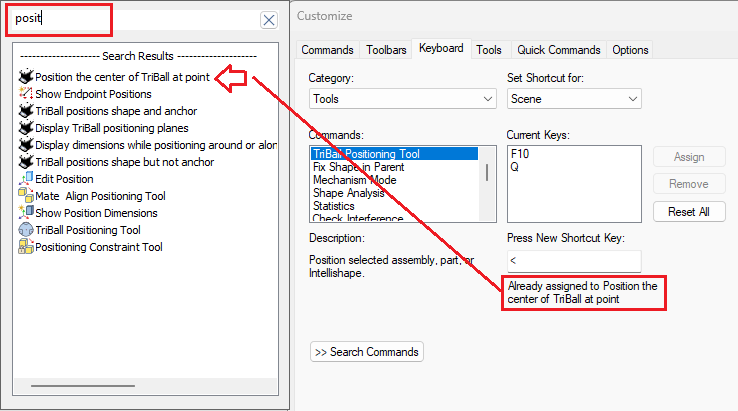
Click the command in the list on the left.
Select the keyboard shortcut you want to remove from the Current list and click the Remove button.
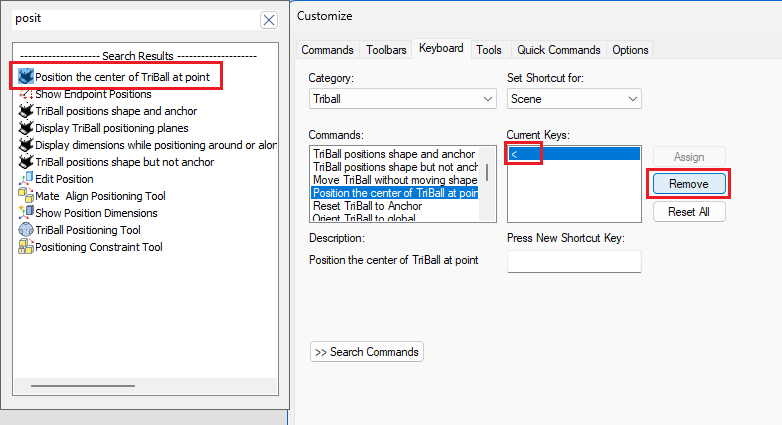
Next, return to the command you wanted to assign, and you are now free to use the previously assigned shortcut.